
A client once asked me why HubSpot showed almost no leads from their website when the contact form was obviously working. Emails were arriving every day. The form just wasn’t talking to HubSpot at all.
That’s the most common HubSpot and WordPress problem I run into: two tools that both work fine, but don’t know about each other. The HubSpot WordPress plugin is the quickest way to connect them. In this guide I’ll walk through the setup, how to get your existing forms into the CRM, a lighter option without the plugin, and fixes for the issues that come up most often.
What the HubSpot WordPress plugin does
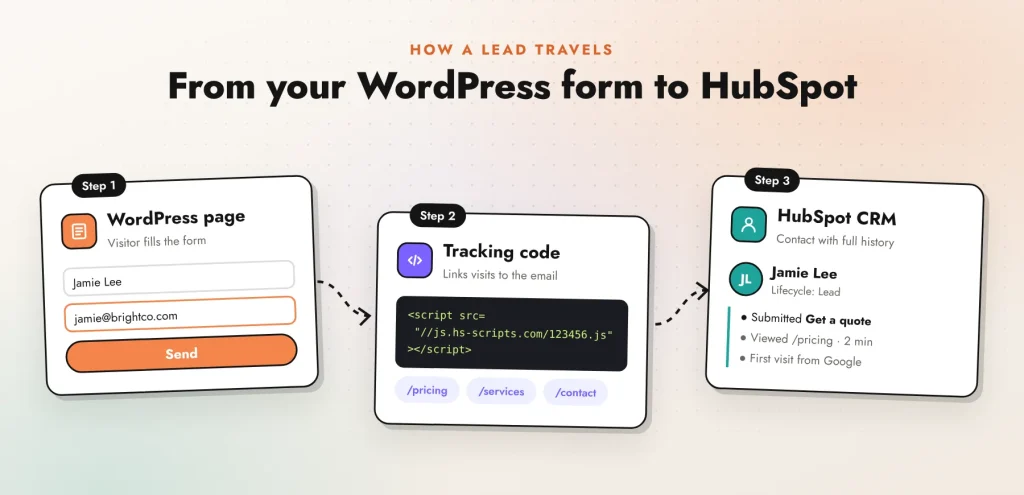
The official plugin is called HubSpot All-In-One Marketing – Forms, Popups, Live Chat. It’s free, it runs on more than 200,000 WordPress sites, and it needs a free HubSpot account to connect. Once it’s active it:
- adds the HubSpot tracking code to every page, so visits show up on each contact’s timeline
- lets you add HubSpot forms and pop-ups with a block in the editor
- adds live chat and chatbots to the site
- includes a meeting block so visitors can book time on your calendar
- shows contacts and basic reports inside your WordPress dashboard
- works with many popular form plugins out of the box
Everything above works on HubSpot’s free tools. Paid HubSpot plans add more on top, such as advanced automation and reporting, but you don’t need one to get the integration running.
How to set up the HubSpot WordPress integration
- Install the plugin. In WordPress go to Plugins → Add New, search for HubSpot, then install and activate the official plugin.
- Connect your account. Open the new HubSpot menu in the dashboard, sign in, and choose the HubSpot account you want to use.
- Check the tracking code. Open your site in a private window and view the page source. You should find a script loading from
js.hs-scripts.comfollowed by your account ID. - Add a form. In the block editor, add the HubSpot Form block and choose a form. On Elementor pages you can use the HubSpot form element in the editor, or paste the form’s shortcode.
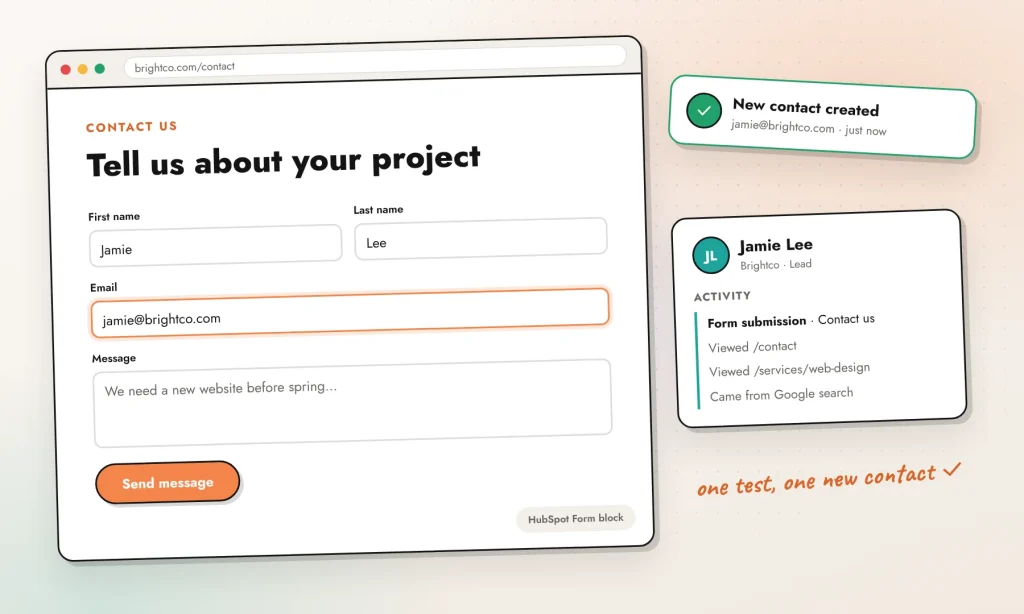
- Send a test. Submit the form with a test email address, then search for that contact in HubSpot. If it’s there with the page views on its timeline, you’re connected.
Using your existing WordPress forms
You don’t have to rebuild every form in HubSpot. With the tracking code installed, HubSpot can collect submissions from the forms you already have. Turn on non-HubSpot form collection in your HubSpot form settings, and it starts picking up forms that meet a few conditions:
- the form sits inside a normal
<form>tag - the email field uses
type="email" - the form is on the page when it loads, not added later by a script
- it isn’t inside an iframe
Simple forms usually work right away. Some page builder forms send data with JavaScript and get skipped. For those, use the form plugin’s own HubSpot add-on if it has one, or send each submission to HubSpot with a webhook or a tool like Zapier.
Connecting HubSpot without the plugin
If all you need is tracking and a few forms, you can skip the plugin. Add the tracking code once, through Google Tag Manager or your theme’s footer, and paste each form’s embed code where you want it.
I often go this way on sites where speed matters. You load only what you use, and you control when the scripts run, for example only after a visitor accepts cookies. The trade-off is that you lose the reports inside WordPress and have to manage the code yourself.
Plugin or embed code: which should you choose?
- Use the plugin if you want chat, pop-ups and reports inside WordPress, or if someone non-technical will be adding forms to pages.
- Use embed code if the site already has forms you like, speed scores matter to you, or you manage tags through Google Tag Manager anyway.
Three things to set up once it’s connected
Getting contacts into HubSpot is only half the job. These three small settings decide whether those contacts turn into customers:
- A follow-up for every form. At minimum, a thank-you email that tells people what happens next, plus a notification to whoever owns the lead. On paid plans you can build this into a full workflow.
- Lifecycle stages. Set new form contacts to Lead or Marketing Qualified Lead, so sales can filter for them instead of scrolling through every newsletter subscriber.
- Source tracking. Add UTM tags to your ads and email links. HubSpot will show which campaign each contact came from, which makes budget decisions much easier.
Troubleshooting common problems
- The form doesn’t show up. Caching and optimisation plugins that delay or combine JavaScript often break it. Exclude the HubSpot scripts (
js.hsforms.netandjs.hs-scripts.com) from those settings and clear the cache. - Visits aren’t recorded. If you use a cookie banner, HubSpot may only start tracking after consent. Ad blockers stop it too. Also check that your theme calls
wp_footer(), because the plugin needs it to print the script. - Every visit counts twice. The tracking code is probably added by both the plugin and Tag Manager. Keep one.
- Leads reach your inbox but not HubSpot. Non-HubSpot form collection is switched off, or that form type isn’t supported. Test with a basic form to find out which.
- Two cookie banners. HubSpot has its own banner, and so does your consent plugin. Pick one and switch the other off.
FAQ
Is the HubSpot WordPress plugin free?
Yes. The plugin is free and works with a free HubSpot account. You only pay if you move to a paid HubSpot plan for extra features.
Does the HubSpot plugin slow down WordPress?
It adds scripts to every page, so there’s some cost. It’s usually small, but measure it with PageSpeed Insights before and after. If the numbers drop noticeably, load the scripts after consent or use the embed method above.
Does it work with Elementor?
Yes. HubSpot forms and meeting blocks can be added inside the Elementor editor, and the shortcode works on any page.
Is it GDPR compliant?
HubSpot gives you the tools, including a cookie banner and consent settings, but compliance depends on how you set them up and what you tell visitors in your privacy policy.
Want HubSpot and WordPress working together properly?
I set up HubSpot on WordPress sites: forms, tracking, lead routing and the automations behind them, without slowing the site down. Get in touch and tell me what you’re working with. If you’re comparing CRMs, my guide to GoHighLevel automation shows the kind of workflows I build there.