Most small businesses I work with don’t have a lead problem. They have a follow-up problem. A form comes in at 9pm, nobody sees it until the next afternoon, and by then the person has already booked with someone else.
GoHighLevel automation fixes that part. Once the right workflows are running, every new lead gets a reply within seconds, every missed call gets a text, and nobody on the team has to remember to chase anyone. Below are the seven workflows I set up first for almost every client, what each one does, and the mistakes I keep seeing in accounts I’m asked to clean up.
How GoHighLevel automation works
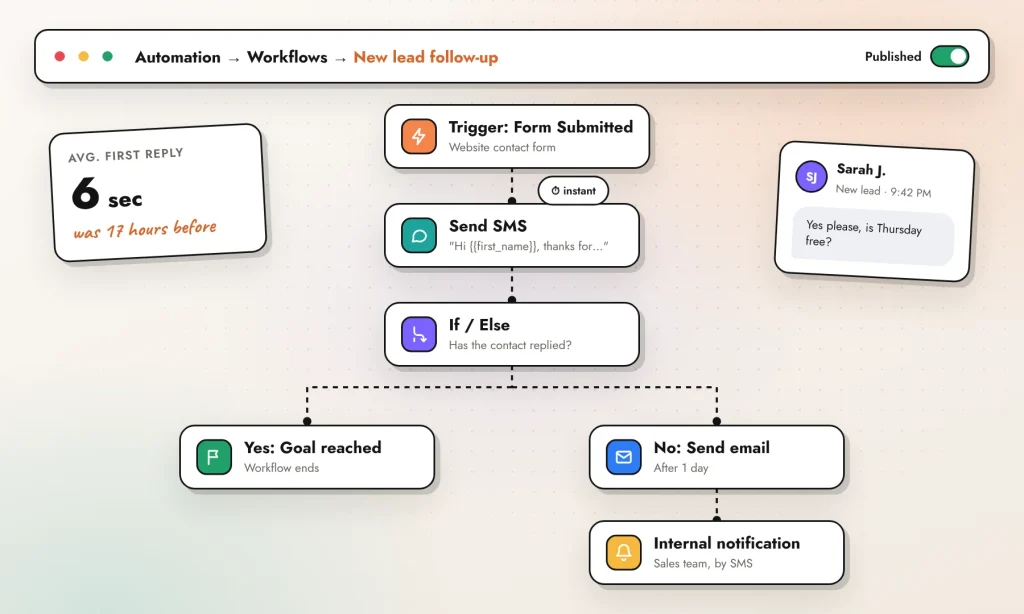
Everything lives under Automation → Workflows. Every workflow is built from the same three pieces:
- Trigger: the event that starts it. The ones I use most are Form Submitted, Call Status, Appointment Status, Pipeline Stage Changed and Customer Replied.
- Actions: what happens next. Send SMS, Send Email, Wait, Internal Notification, Add Tag, update an opportunity, and so on.
- Conditions: If/Else branches that send a contact down a different path depending on a tag, a field, or whether they’ve already replied.
You can start from a blank canvas or from one of the built-in recipes. I usually start blank. Recipes are handy for seeing the shape of a workflow, but I end up deleting half the steps anyway, and it’s easier to build exactly what the business needs from the start.
7 GoHighLevel automations worth setting up first
1. Instant reply to new leads
Trigger: Form Submitted, filtered to the form on your website or funnel.
Actions: Send SMS straight away, then Send Email with a little more detail, then an Internal Notification to whoever handles sales.
Speed is the whole point here. A reply inside a minute feels personal even when it’s automated. Keep the first text short and end it with a question, something like “Hi {{contact.first_name}}, thanks for getting in touch. Is this for your home or your business?” When they answer, the conversation moves to a real person.
2. Missed call text back
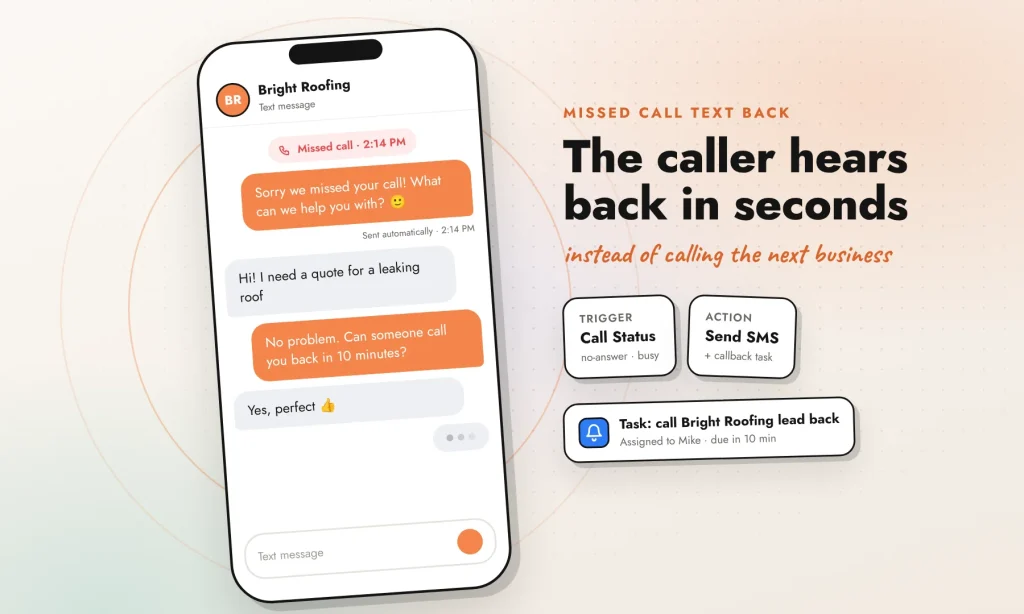
Trigger: Call Status, filtered to no-answer and busy.
Actions: Send SMS (“Sorry we missed your call. What can we help you with?”), then Create Task so someone calls back.
People who hit voicemail rarely leave a message. They just call the next business on the list. A text within a few seconds keeps them talking to you instead, and in my experience it’s the workflow clients notice first.
3. Appointment reminders and no-show follow-up
Trigger: Appointment Status, set to booked or confirmed.
Actions: a Wait step tied to the appointment time, a reminder text 24 hours before, then a second one about 2 hours before.
Build a second, separate workflow for no-shows: when the status changes to no-show, send one friendly text with the booking link so they can pick a new time. Tie the waits to the appointment time rather than a fixed delay, otherwise someone who books for next week gets a “see you tomorrow” text tonight.
4. Review requests
Trigger: the opportunity moves to a stage like Job Done, or a tag such as service-complete is added.
Actions: Wait a couple of hours, send the review request by SMS, and if there’s no response after three days, send one email reminder.
Ask once, remind once, then stop. Anything more starts to feel like pressure, and that’s the opposite of the feeling you want before someone writes about you in public.
5. Pipeline stages that move themselves
Trigger: events that already tell you where a lead stands, such as Customer Replied or Appointment Status.
Action: update the opportunity to the matching pipeline stage.
Nobody enjoys dragging cards around a board. When stages update on their own, the pipeline stays accurate and the reports finally mean something.
6. Long-term nurture for leads who aren’t ready
Trigger: the lead lands in a stage like Not Ready Yet, or gets a matching tag.
Actions: one useful email every two to three weeks for a few months, with a Goal Event set to Appointment Booked so the sequence stops the moment they book.
Most leads aren’t ready the day they fill in a form. A light, helpful email now and then keeps you in mind without being pushy.
7. Alerts for your team
Trigger: Customer Replied, a high-value form, or a new opportunity.
Actions: Assign to User and an Internal Notification by SMS, email or the mobile app.
Good automation doesn’t replace people. It tells the right person when it’s time to step in, and that alone saves more deals than any clever sequence.
Mistakes I see in GoHighLevel automations
- Not stopping when someone replies. The workflow settings include a stop-on-response option, but it stops everything, including reminders you still want to send. I prefer Goal Events and If/Else checks so each workflow ends at the right moment.
- Too many messages. Three texts in one afternoon gets you an unsubscribe, not a booking.
- Skipping A2P 10DLC registration. To text US numbers you need an approved brand and campaign, otherwise carriers block your messages. Approval can take several days, so start it before you build anything.
- Publishing without a test. Run every workflow on a test contact first and check the wait steps and time zone. A reminder that fires at 3am is worse than no reminder.
- One giant workflow for everything. Smaller workflows with clear names are easier to fix six months later, by you or by whoever takes over.
Getting your WordPress leads into GoHighLevel
A lot of businesses keep their main website on WordPress and use GoHighLevel as the CRM. That works well, as long as the leads actually reach the CRM. There are three common ways to connect them:
- Embed a GoHighLevel form on the WordPress page. The quickest option, and the data goes straight into the right contact record.
- Keep your existing form (Elementor, Gravity Forms, Contact Form 7) and send each submission to GoHighLevel through a webhook. More work to set up, but the design stays exactly as it is.
- Add the chat widget through the official LeadConnector plugin, so website chats land in the same inbox as your texts and emails.
Whichever route you pick, submit a test lead and confirm it shows up in GoHighLevel with the right tags before you switch any workflows on. If you’re also weighing up HubSpot, I wrote a separate guide on connecting HubSpot to WordPress.
FAQ
Is automation included in every GoHighLevel plan?
Workflows are available on all plans. Some premium steps, such as custom webhooks and AI actions, are billed by usage, so check your plan before building heavily on them.
What’s the difference between workflows and campaigns?
Campaigns were GoHighLevel’s older automation tool. Workflows replaced them and that’s where new features go, so build anything new as a workflow.
Can I use AI inside GoHighLevel workflows?
Yes. There are AI actions that can draft replies, summarise conversations or sort incoming messages. They’re billed by usage, and I’d still keep a person in the loop for anything a customer will read.
How many workflows should a small business start with?
Three: instant reply, missed call text back and appointment reminders. Get those working well, then add the rest one at a time.
Need these set up for you?
I build and test GoHighLevel workflows for small businesses and agencies, and connect them to WordPress sites so no lead gets lost on the way. Tell me what you need and I’ll suggest where to start.